
Using Test.loadData to import records with relationship

There are many resources and documents available around how to use Test.loadData to create test records in Apex class. As per best practice of writing Test classes in Apex, Its good idea to store master data (aka Seed, Reference data) in static resource and load it in Test classes using “Test.loadData” method. It will save lots of code around creating test records and at the same time easy to maintain. We can store records of Custom settings, standard or custom object which can be used frequently in our code. One of the best functionality to make writing Test classes more easier, As we don’t need to concentrate on writing code for creating data, time can be used to assert actual functionality.


So the question is, How can we load related records using Test.loaddata() method ? Simply by creating fake Salesforce Ids, that’s right !!! It is possible.
In this post, we will be loading two CSV files in static resource. One static resource file is used to create Account records and Other CSV will be used to create child contacts of Account.
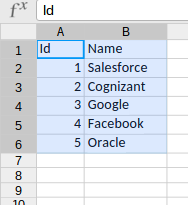

Account CSV file for Static resource to use in Test.loadData method
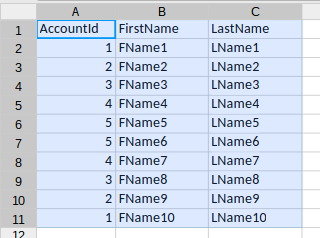
Contact CSV file for Static resource to use in Test.loadData method

As we can see in above image, dummy Salesforce Id is provided in Account CSV and same ID is used in Contact CSV file in column “AccountId”.
Below code snippet proves that it is working.


@isTest

public class StaticResourceTest {


      static testmethod void staticResourceLoad(){


        //Load CSV file saved in static resource 

        List<SObject> lstAcc = Test.loadData(Account.sObjectType,'AccountLoad_Test');

        List<SObject> lstCon = Test.loadData(Contact.sObjectType,'ContactLoad_Test');


        //Confirm that total number of accounts created are 5

        System.assertEquals(lstAcc.size(), 5);


        for(Account a : [SELECT Id, Name, (SELECT FirstName,LastName FROM Contacts) FROM Account where Id IN :lstAcc]){

            //confirm that every Account has associated child contact

            System.assertNotEquals(null, a.contacts);


            //confirm that every Account has exactly 2 contacts

            System.assertEquals(a.contacts.size(), 2);

        }

    }

}

Comments

Popular posts from this blog

Track Field History for more than 20 fields - Salesforce

All of us would have come across a situation when we need to track more than 20 fields for an object in salesforce. We have raised this Idea around 8 years ago in the success community. But sill it has't implemented by salesforce. But for now, we can achieve it partially with the following workaround. Approach: This approach uses a custom Text field which stores values of multiple other individual fields. Then enabling field history tracking of this field would allow you to track changes for multiple sets of other individual fields. Thus even though remaining within the count limit 20, yet track changes of more than 20 fields. Let us in this example take “Account ”  object and apply the steps to track change in Account Name, Phone, Parent Account and Billing Address all together. Steps: Step 1:  Add a new custom field. Setup -> Customize -> Accounts -> Fields Create a new Text (255) field “ Track FieldHistory ” (Or give any other n...

Customize the columns in the Items to Approve section on home page

We can customize the items to approve section with the help of custom visualforce page. All you need to do is create the below page with your object and respected fields to be displayed and then add the page to a new home page component. Page: <apex:page controller="itemstoApprovecontroller" sidebar="false" showHeader="false">     <apex:form >         <apex:pageBlock title="Incidents/Service Request To Approve">             <apex:pageBlockTable value="{!items_to_approve}" var="item_to_approve">                 <apex:column headerValue="Action" width="160 px" >                                     <apex:commandLink target="_top" value="Reassign |" action="{!REASSIGNnavigation}" style="text-decoration:none;color: #015ba7;" styleClass="cactionLink">   ...

Kanban view for Lightning

Tired of list views? Looking for a dynamic views to show your cases or opportunities in all new way? Here we go,  Salesforce introduced Kanban views for us to have better visibility  of our cases/opportunities and their journey from opening to closure. A case kanban allows you to visually summarize all of the cases for your agents,  by status or priority. It's not only a board, but also a  drag and drop  tool that will help agents keep their cases moving towards resolution. Similarly an opportunity Kanban display opportunities from a particular sales path Let's take a closer look at what all we can do with Kanban Track a Deal with Path Display opportunities by Sales path Move an Opportunity to the Next Stage Take Action on Your Records